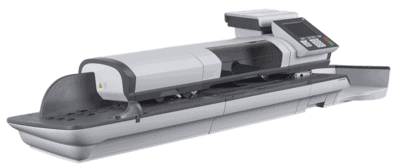
Quadient IX-9

The iX-9 sets a new standard for mailing system productivity, operability, and efficiency. Designed with the operator in mind, this mailing system delivers simple ergonomic operations, investment protection, cost savings, reliable production and maximum uptime. Ideal for high mail volume. 

The iX-9 automatically seals, weighs, measures, meters, and stacks large mail runs in minutes. With batch processing speeds of up to 300 letters per minute, the iX-9 is the workhorse of mailing systems.

The iX-9 also meets the latest Intelligent Mail® Indicia (IMI) and Dimensional Weighing (DIM) USPS® requirements.

In order to print postage, funds need to be purchased and loaded onto the mailing machine using the funds server.

Click Link: How to Add Funds

NOTE: USPS requires your postage meter (PSD) to connect daily if postage is metered.

We recommend leaving the mailing system connected to the network permanently.

        • The mailing system will automatically connect to the postal server at night.
        • If the mailing system does not connect within 72 hours it will be de-activated.
        • If your system is de-activated, you will need to perform a Postal Inspection call to unlock the system.
           

Click Link: How to Unlock PSD

Manual calls allow you to connect to the Online Server in order to retrieve new information (update postal rates, slogan or messages) or to enable features and options (weigh platform capacity, number of accounts, differential weighing, etc.).

You will be instructed to use this function when rates change if you do not have a rate protection agreement.

Click Link: How to Run a Generic Call

Your Mailing System can handle envelope flap sizes as illustrated below (note: the illustration is not to scale).

 
  •  

    Envelope dimensions and weights

    • Max. length: 13″ (10” on system with dynamic scale)
    • Max. width: 15″ (13” on system with dynamic scale)
    • Min. length: 3.5”
    • Min. width: 5”
    • Flap max. height: 3″
      • Min. thickness: 0.008″ (with minimum thickness, grammage mini 200g/m²)
      • Max. thickness: < 0.79″
      • Min. weight (with Dynamic Weighing Module): 0.005 lbs
      • Max. weight (with Dynamic Weighing Module): 2.2 lbs
     
  • Stack of envelopes
    • Mixed size Feeder: max 7 3/4″ high
    • Min. weight: 0.1 oz
    • Max. weight: 2 lb.10.23 oz

Quadient IX-7

Designed for mid to high-volume mailers, the iX-7 Series mailing system is built to perform in the most demanding mail centers.

The iX-7 postage machine features an easy-to-use color touchscreen, two processing speeds, and various weighing and stacking options. 

Process up to 140 letters per minute (iX-7) or 175 letters per minute (iX-7PRO). Quadient’s iX-7 meets the latest Intelligent Mail® Indicia (IMI) and Dimensional Weighing (DIM) USPS® requirements. 

In order to print postage, funds need to be purchased and loaded onto the mailing machine using the funds server.

  • Funds must be available in your Customer Account on the server for download.
  • If it is fund account, a bill for all funds loaded on the mailing machine will be sent.

As supervisor, you can set the mailing system to ask for a PIN code for adding funds. 

  • The mailing machine may prompt for a PIN code depending on user settings. Enter the PIN code using the numeric keypad and press “OK”.
  • The mailing machine has to connect to LAN to perform this process.

Click Link: How to Add Funds


The USPS offers several Confirmation Services to assure postal customers of the delivery of their parcels. To track parcels, the USPS must be able to uniquely identify each one with a label. When tracking a parcel using electronic confirmation services, an eConfirmation label is used.

Quadient provides you with special eConfirmation labels once you sign up for the eConfirmation contract. The three types of eConfirmation labels correspond to the three types of eConfirmation Services supported by the USPS: eDelivery Confirmation labels, eSignature Confirmation labels, and eCertified Mail labels.

How to Process Electronic Return Receipts

Attention:

    • Not all mail classes may offer eCertified.
    • Be sure to use the correct label for the service you want.
  1.  Place the item on the weighing platform.
  2. Press the Rate button (the envelope icon with three squiggly lines).
  3. Select the First Service, such as 1st Class Letter or 1st Class Large Envelope, etc…
  4. Select Extra Services.
  5. Select E-Services.
  6. Select eCertified.
  7. Enter the destination ZIP Code.
  8. Enter an e-Confirmation Sender ID (optional).
  9. Select Return Receipt, then choose eReturn Receipt (optional).
  10. Press the Check Mark or [Finish] button to save and return to the Home screen.
  11. Press the Label button and enter the number of labels
  12. Verify that sufficient labels are loaded in the label dispenser.
  13. In the e-Confirmation screen, verify or scan the PIC (tracking) number.
  14. The machine will automatically suggest the next PIC number for the next eCertified label.
  15. If the displayed PIC number does not match your label, use the [C] key to clear digits (right to left), then enter the correct PIC number.
  16. Press the Check Mark again to print the label(s).

NOTE: Use the labels in order to avoid typing the full PIC number each time. If you have a scanner, scan the PIC number – this is fast, easy, and reliable.

If after cleaning, you still observe poor print quality (streaked, too light, blurred, etc.) or the system indicates the ink cartridge is out of ink … it is time to replace the ink cartridge.

Click Link: How to change the Ink Cartridge

If the printing on envelopes or labels looks unclear or dirty in some way or if the postage is only partially printed, clean the headset to restore the print quality.

Click Link: Auto Printhead Cleaning Process

If automatic cleaning is not sufficient, you can clean the printing heads manually.

Click Link: How to Manually Clean the Ink Cartridge

    1.  

NOTE: USPS requires your postage meter (PSD) to connect daily if postage is metered.

We recommend leaving the mailing system connected to the network permanently.

        • The mailing system will automatically connect to the postal server at night.
        • If the mailing system does not connect within 72 hours it will be de-activated.
        • If your system is de-activated, you will need to perform a Postal Inspection call to unlock the system.
 Click Link: How to Unlock PSD


Manual calls allow you to connect to the Online Server in order to retrieve new information (update postal rates, slogan or messages) or to enable features and options (weigh platform capacity, number of accounts, differential weighing, etc.).

You will be instructed to use this function when rates change if you do not have a rate protection agreement.

Click Link: How to Run a Generic Call

Your Mailing System can handle the envelope & flap sizes as illustrated below (note: the illustration is not to scale)


  •  

    Envelopes: 

    • Minimum Weight: 0.1 oz.
    • Maximum Weight: 1 lb. 10.4 oz.
    • Minimum Envelope Thickness: 0.008 inches.
    • Maximum Envelope Thickness: 0.63 inches (1 envelope at a time, no sealing).

Quadient IX-5

Ideal for mid-level mail volume Quadient’s iX-5 mailing system is  flexible, efficient, and easy to use. This postage powerhouse machine features a color screen and intuitive control panel.

The iX-5 meets the latest Intelligent Mail® Indicia (IMI) and Dimensional Weighing (DIM) USPS® requirements. Available in two models: a power-assisted hand feed (iX-5 HF) or auto-feed technology (iX-5 AF). 

In order to print postage, funds need to be purchased and loaded onto the mailing machine using the funds server.

  • Funds must be available in your Customer Account on the server for download.
  • If it is fund account, a bill for all funds loaded on the mailing machine will be sent.

As supervisor, you can set the mailing system to ask for a PIN code for adding funds. 

  • The mailing machine may prompt for a PIN code depending on user settings. Enter the PIN code using the numeric keypad and press “OK”.
  • The mailing machine has to connect to LAN to perform this process.

Click Link: How to Add Funds


The USPS offers several Confirmation Services to assure postal customers of the delivery of their parcels. To track parcels, the USPS must be able to uniquely identify each one with a label. When tracking a parcel using electronic confirmation services, an eConfirmation label is used.

Quadient provides you with special eConfirmation labels once you sign up for the eConfirmation contract. The three types of eConfirmation labels correspond to the three types of eConfirmation Services supported by the USPS: eDelivery Confirmation labels, eSignature Confirmation labels, and eCertified Mail labels.

How to Process Electronic Return Receipts

Attention:

    • Not all mail classes may offer eCertified.
    • Be sure to use the correct label for the service you want.
  1.  Place the item on the weighing platform.
  2. Press the Rate button (the envelope icon with three squiggly lines).
  3. Select the First Service, such as 1st Class Letter or 1st Class Large Envelope, etc…
  4. Select Extra Services.
  5. Select E-Services.
  6. Select eCertified.
  7. Enter the destination ZIP Code.
  8. Enter an e-Confirmation Sender ID (optional).
  9. Select Return Receipt, then choose eReturn Receipt (optional).
  10. Press the Check Mark or [Finish] button to save and return to the Home screen.
  11. Press the Label button and enter the number of labels
  12. Verify that sufficient labels are loaded in the label dispenser.
  13. In the e-Confirmation screen, verify or scan the PIC (tracking) number.
  14. The machine will automatically suggest the next PIC number for the next eCertified label.
  15. If the displayed PIC number does not match your label, use the [C] key to clear digits (right to left), then enter the correct PIC number.
  16. Press the Check Mark again to print the label(s).

NOTE: Use the labels in order to avoid typing the full PIC number each time. If you have a scanner, scan the PIC number – this is fast, easy, and reliable.


If after cleaning, you still observe poor print quality (streaked, too light, blurred, etc.) or the system indicates the ink cartridge is out of ink … it is time to replace the ink cartridge.

Click Link: How to Change the Ink Cartridge

If the printing on envelopes or labels looks unclear or dirty in some way or if the postage is only partially printed, clean the headset to restore the print quality.

Click Link: Auto Printhead Cleaning Process

If automatic cleaning is not sufficient, you can clean the printing heads manually.

Click Link: How to Manually Clean the Ink Cartridge

    1.  

NOTE: USPS requires your postage meter (PSD) to connect daily if postage is metered.

We recommend leaving the mailing system connected to the network permanently.

        • The mailing system will automatically connect to the postal server at night.
        • If the mailing system does not connect within 72 hours it will be de-activated.
        • If your system is de-activated, you will need to perform a Postal Inspection call to unlock the system.
 Click Link: How to Unlock PSD


Manual calls allow you to connect to the Online Server in order to retrieve new information (update postal rates, slogan or messages) or to enable features and options (weigh platform capacity, number of accounts, differential weighing, etc.).

You will be instructed to use this function when rates change if you do not have a rate protection agreement.

Click Link: How to Run a Generic Call

Your Mailing System can handle the envelope & flap sizes as illustrated below (note: the illustration is not on scale).


  • 5” is also the minimum width for portrait mode. This figure rises up to 6.38” for envelopes that have the maximum height (9”).

     
  • Envelopes:

    • Minimum envelope thickness: 0.008″.

    Label dimensions (pre-cut and self-adhesive):

    • Max. width: 1.57″.
    • Min. length: 5.9″ (no slogan), 6.5” with slogan.
    • Max. length: 8.4″.

Your Mailing System can handle the envelope & flap sizes as illustrated below (note: the illustration is not on scale).


  • 5” is also the minimum width for portrait mode. This figure rises up to 6.38” for envelopes that have the maximum height (9”).

     
  • Envelopes:

    • Minimum envelope thickness: 0.008″.

    Label dimensions (pre-cut and self-adhesive):

    • Max. width: 1.57″.
    • Min. length: 5.9″ (no slogan), 6.5” with slogan.
    • Max. length: 8.4″.

Quadient IX-3

The iX-3 Series is the best mailing machine choice for effortless mailing and shipping operations. 

Couple the iX-3 with Quadient’s shipping software, SMART, for one-stop rate shopping to track, report, and reconcile postage costs for mail and parcels.

The iX-3 also meets the latest Intelligent Mail® Indicia (IMI) and Dimensional Weighing (DIM) USPS® requirements.

In order to print postage, funds need to be purchased and loaded onto the mailing machine using the funds server.

  • Funds must be available in your Customer Account on the server for download.
  • If it is fund account, a bill for all funds loaded on the mailing machine will be sent.

As supervisor, you can set the mailing system to ask for a PIN code for adding funds. 

  • The mailing machine may prompt for a PIN code depending on user settings. Enter the PIN code using the numeric keypad and press “OK”.
  • The mailing machine has to connect to LAN to perform this process.

Click Link: How to Add Funds


The USPS offers several Confirmation Services to assure postal customers of the delivery of their parcels. To track parcels, the USPS must be able to uniquely identify each one with a label. When tracking a parcel using electronic confirmation services, an eConfirmation label is used.

Quadient provides you with special eConfirmation labels once you sign up for the eConfirmation contract. The three types of eConfirmation labels correspond to the three types of eConfirmation Services supported by the USPS: eDelivery Confirmation labels, eSignature Confirmation labels, and eCertified Mail labels.

How to Process Electronic Return Receipts

Attention:

    • Not all mail classes may offer eCertified.
    • Be sure to use the correct label for the service you want.
  1.  Place the item on the weighing platform.
  2. Press the Rate button (the envelope icon with three squiggly lines).
  3. Select the First Service, such as 1st Class Letter or 1st Class Large Envelope, etc…
  4. Select Extra Services.
  5. Select E-Services.
  6. Select eCertified.
  7. Enter the destination ZIP Code.
  8. Enter an e-Confirmation Sender ID (optional).
  9. Select Return Receipt, then choose eReturn Receipt (optional).
  10. Press the Check Mark or [Finish] button to save and return to the Home screen.
  11. Press the Label button and enter the number of labels
  12. Verify that sufficient labels are loaded in the label dispenser.
  13. In the e-Confirmation screen, verify or scan the PIC (tracking) number.
  14. The machine will automatically suggest the next PIC number for the next eCertified label.
  15. If the displayed PIC number does not match your label, use the [C] key to clear digits (right to left), then enter the correct PIC number.
  16. Press the Check Mark again to print the label(s).

NOTE: Use the labels in order to avoid typing the full PIC number each time. If you have a scanner, scan the PIC number – this is fast, easy, and reliable.


If after cleaning, you still observe poor print quality (streaked, too light, blurred, etc.) or the system indicates the ink cartridge is out of ink … it is time to replace the ink cartridge.

Click Link: How to Change the Ink Cartridge

If the printing on envelopes or labels looks unclear or dirty in some way or if the postage is only partially printed, clean the headset to restore the print quality.

Click Link: Auto Printhead Cleaning Process

If automatic cleaning is not sufficient, you can clean the printing heads manually.

Click Link: How to Manually Clean the Ink Cartridge

    1.  

NOTE: USPS requires your postage meter (PSD) to connect daily if postage is metered.

We recommend leaving the mailing system connected to the network permanently.

        • The mailing system will automatically connect to the postal server at night.
        • If the mailing system does not connect within 72 hours it will be de-activated.
        • If your system is de-activated, you will need to perform a Postal Inspection call to unlock the system.
 Click Link: How to Unlock PSD
 

Manual calls allow you to connect to the Online Server in order to retrieve new information (update postal rates, slogan or messages) or to enable features and options (weigh platform capacity, number of accounts, differential weighing, etc.).

You will be instructed to use this function when rates change if you do not have a rate protection agreement.

Click Link: How to Run a Generic Call

Your Mailing System can handle the envelope & flap sizes as illustrated below (note: the illustration is not to scale)


  •  

    Envelopes: 

    • Minimum Weight: 0.1 oz.
    • Maximum Weight: 1 lb. 10.4 oz.
    • Minimum Envelope Thickness: 0.008 inches.
    • Maximum Envelope Thickness: 0.63 inches (1 envelope at a time, no sealing).

Quadient IX-1

Combine mail and parcel processing into one simple solution with Quadient’s IX-1 postage meter. No more waiting in line for stamps at the post office. Access over 50 USPS® postage rates and services, including First-Class Mail®, Priority Mail®, and Certified Mail™ from the convenience of your home or small office . The IX-1 offers a wide range of standard features, innovative apps, and a detachable 10 lb. scale.  The iX-1 also meets the latest Intelligent Mail® Indicia (IMI) and Dimensional Weighing (DIM) USPS® requirements.

Click below to Launch guided installation.

You can add funds to your Mailing System at any time by complete the steps listed below.

The Mailing System then connects to the Postal Services and validates the operation.

 
    1. To add funds to the PSD:

       
      1. From the home screen:

         
        1. The Funds Menu is displayed.


      2. Select ADD FUNDS.

         
        1. The Add Funds screen is displayed.


      3. If the system asks for a PIN code, enter the code using the keypad and press [OK].

         
      4. Enter the amount of postage to add using the keypad (use C to clear a digit).

         
      5. Press [OK] to start the connection to the Postal Server.

         
        1. If the funding process is successful, the system displays a successful message.


        2.  

          If funding fails, the system displays a failure message and the amount that you may actually add, depending on your postal account balance.

          In the case of a communication error, the amount previously entered cannot be changed. Check connection settings.


Power supply must be plugged in to move the ink cartridge to the ‘replacement’ position.

  1. To change the Ink cartridge logged as User:

     
    1. As a user:

       
  2.  
      1. The cartridge moves to the ‘replacement’ position, and the following message is displayed:


    1. Open the cover, by pulling it towards you from the top left.


    2. Pull on the left side of the blue lever, to unlock the cartridge.

       
    3. Pull the cartridge towards you to disengage it.


    4. Remove the protective strips from the new ink cartridge.


    5. Insert the new ink cartridge, and then push it forward until it stops.

       
    6. Put the blue lever back into place.


    7. Close the cover.

       
    8. Press [OK] to validate.

If automatic cleaning is not sufficient, you can clean the printing head manually.

 
  1. To clean the printing head manually:

     
    1. Open the cover.


    2. Remove the ink cartridge (See How to Change the Ink Cartridge).


    3. Clean the head with a soft damp cloth.

       
    4. Put the cartridge back in place.


    5. Close the cover.

NOTE: USPS requires your postage meter (PSD) to connect daily if postage is metered.

We recommend leaving the mailing system connected to the network permanently.

        • The mailing system will automatically connect to the postal server at night.
        • If the mailing system does not connect within 72 hours it will be de-activated.
        • If your system is de-activated, you will need to perform a Postal Inspection call to unlock the system.
 Click Link: How to Unlock PSD
 

Manual calls allow you to connect to the Online Server in order to retrieve new information (update postal rates, slogan or messages) or to enable features and options (weigh platform capacity, number of accounts, differential weighing, etc.).

You will be instructed to use this function when rates change if you do not have a rate protection agreement.

Click Link: How to Run a Generic Call

Your Mailing System can handle the envelope & flap sizes as illustrated below (note: the illustration is not to scale)


  • Envelopes: 

    • Minimum Weight: 0.1 oz.
    • Maximum Weight: 1 lb. 10.4 oz.
    • Minimum Envelope Thickness: 0.008 inches.
    • Maximum Envelope Thickness: 0.63 inches (1 envelope at a time, no sealing).