NEOSHIP

(desktop shipping)

Neoship ADVANCED supports Batch Processing.

Batch Processing allows you to apply a set of shipping characteristics across multiple addresses and shipping labels.

• All items within a batch typically share the same profile – (i.e. same box/envelope size and weight; extra services). The only difference is the “ship-to address”.
• Batch Processing improves efficiency by automating repetitive tasks.
• Batches are tracked through a unique ID that is created within Neoship ADVANCED.

Neoship ADVANCED supports:

• Up to 100 shipments per batch
• Unlimited number of batches


Procedure

 
How To Create A Batch:
 
        1. The “Ship From” field is used to identify the return address of where the item is being shipped from. Using the drop down menu, select the appropriate “Ship From” address. For this example “MAIN – NEOPOST USA” will be chosen.

          The “Packaging Type” field is used to select the type of packaging the item will be shipped in. Using the drop down menu, select the package type. If the package type you are looking for is not available in the drop down, simply create a new package type by selecting “Define Customer Package Type”. 

          When creating a new package type, you have to enter the following information:
          • Dimensions and weight of the package
          • Short description of the package
          • Assign the package a default mail class and optional extra services
          • Visibility of package

          For this example “Package Any dimension < 12” will be chosen.

           
          1.  
             
             
        2. Place the item you are shipping on the weighing platform.
          Click “GET WEIGHT”.
           
          1.  
             
             
          2.  
            The weight is now displayed.
             
          3.  
             
             
        3. To create a “batch” you will first have to select existing addresses from your Address Book. Each batch can consist of up to 100 addresses. Select “Multiple Shipment”.
          Click “CREATE BATCH”.
           
          1.  
             
             
        4. To add addresses to a batch, click the “<” button next to the address that you would like to add. The address will move under the “Batch Addresses” heading. Once you have added all applicable addresses, click “CONTINUE”.
           
          1.  
             
             
        5. Under the “Shipping Services” column, click “GET RATES”. All applicable rate classes and extra services that can be applied to the items being shipped will be listed here.
        6. Once you have selected all applicable extra services, click “CALCULATE TOTAL POSTAGE” to review the total cost for all items being shipped within the batch.

           
          1.  
             
             
        7. To view the individual break down of each item within the batch shipment click the “+” sign.
           
          1.  
             
             
        8. Before printing the shipping labels, click on the “gear” icon to verify or set your printing preferences such as:
          • Printing device
          • Type of printer
          • Label default
           
          1.  
             
             
        9. You are now ready to print the shipping label, click “PRINT SHIPPING LABEL”.

           
          1.  

A refund can be initiated during the 24 hour period after the shipping date when a shipping label was created and printed in error. 

NOTE:
 You can cancel the shipment on the day the label was printed.

   • When applying for a refund, the User will receive 90% of the postage value back. 
   • When cancelling a shipment, the User will receive 100% of the postage value back.

As soon as the User applies for a postage refund, their Quadient Postage Funding® account will be credited for 90% of the postage value. 
Once a label has been printed, you have 1 business day to request a refund.
NOTE: it is 1 business day from the mailing date printed on the shipping label.

The refund is by funds that are credited to the Quadient Postage Funding® account. You cannot receive funds in any other format.

Refund requests are not always approved. The USPS® researches each refund request. If the refund is considered false or fraudulent, it will be rejected. The refund amount will be reversed within the Quadient Postage Funding® account. This process can take up to 45 days.

The system will allow a User to cancel a completed shipment before 10:00 PM central time, the day the label was printed.
   • Cancelled shipments will not be charged to the User’s Quadient Postage Funding® account.
   • Users will be warned that the cancelled shipping label is to be destroyed.  However, if a cancelled shipment label is ultimately scanned by the USPS® in the mail stream, their Quadient Postage Funding® account will automatically be charged for the original amount of the shipment.

Upon cancellation of a shipment, the status of the shipment transaction will be updated to ‘Cancelled’.  The User ID and time/date stamp of the cancel event will be saved with the transaction history.

The User will be presented with three (3) choices when cancelling a shipment:
   • Create an identical shipment with a new tracking number.
   • Modify one or more of the shipment details before creating a new shipping label with a new tracking number.
   • No new shipment to be created.

At the conclusion of each shipping day, the ‘CANCEL’ button will be removed from the transaction history display.  Customers will retain the option to request a refund of 90% of the package total for the remainder of the 24 business hours packages are eligible for refunds.


  1. Procedure


    1. Select “Shipping History” from the HISTORY drop down menu.

       
    2. In the “Refund/Cancel” column, select “CANCEL”.

      Once the cancellation is initiated, a pop up message will appear alerting you to destroy the label and not to induct it into the mail stream. If you do induct the label into the mail stream after requesting a void you will be charged for the postage on the label.  You have the option to accept or not accept these terms and conditions.  As soon as the cancellation is initiated, 100% of the funds will be replenished into the Quadient Postage Funding® account.

      Note:
      To view a cancelled shipment, select “Shipping History” from the HISTORY drop down menu and on the SHIPMENT LIST page click on “Filtering criteria”.  Select “Cancelled” from the Cancelled drop down menu and click on the “FILTER” button.

KCPS

(cloud print and scan)

Activation Email

Look out for an activation email from noreply.cps@kyocera.biz .

Click the activate now button in that email to set up your password.

Username and Password

During the Activation, your username will display in the first box.

Follow the prompt to set up your password and hit Save.

Log In to KCPS

Pin Number

Your pin number will be emailed to you after initial activation. Keep this number handy! This number will be used to release your print jobs at the machine. 

Log in to your KCPS dashboard your-company-name-here.cps-us.kyocera.biz/login

On the left, select Applications

 You’ll have the option to download the application for Windows or Mac.

Open the program that downloads and follow the prompts to install the program.

Your organization’s name is your company’s name.

Sign in using your username and password.

. Open the program. You should be able to do this by clicking it as it appears at the bottom of your browser or finding the program in Downloads.

  1. Follow the prompt to allow the installation.
  2. After the program installs, it should open and ask for the Organization Name, Enter your company’s name.
  3. Enter your User name and Password and hit OK.

After you install the application on your computer, you’ll now see Kyocera Cloud Print and Scan asa new printer option.

  1. Choose Kyocera Cloud Print and Scan as the printer from your computer. You will need to enter your username and password in the KCPS app if you are not logged in.
  2. Go to the copier where you want to print your documents and log in to KCPS.

DO NOT ENTER USERNAME

Log in using your pin number ONLY on the number pad. Then hit the “Login” button.

 Please use the “C” for Clear on the keypad to delete any failed attempts. It will not auto clear the last PIN input.

  1.  Select the KCPS icon. The KCPS menu displays.
  2. Select Print.
  3. Select one or more documents from the list displayed.
  4. Select the printer icon when you are finished selecting documents.
  5. Set any print options you want to apply to all your documents. If print policies are in effect, some choices are unavailable.
  6. Select Print
  7. All the print jobs you selected are printed using the print options you set.

Download the Kyocera Mobile Print App from the Play/App Store.

  1. Once Downloaded and Opened, Tap the Icon on the Bottom Right with a cog wheel.
  2. Scroll to the bottom where it says Kyocera Cloud Print and Scan and tap on it.
  3. Enter the following information:
    1. Domain Name : cps-us.kyocera.biz
    2. Organization Name : Your Organization’s Name (eg. Chase Bank LLC)
    3. Username and Password are the same from the KCPS app and website.
  4. After you enter the information tap the slider icon. For Androids hit “OK”.
  5. On iOS be sure to tap the done option in the top right or it won’t save it.
  6. Now if it says Kyocera Cloud Print and Scan at the bottom, now you’re all set.

Important to remember that any desired print must be downloaded to your phone and accessed through the Kyocera Mobile Print app to print it through KCPS.

SMB Scanning

(scanning from email client)

Click link for instructions:

Start by pressing the home button to get to the home screen

  • Press the System Menu/Counter Hard button or The System Menu button on the screen
  • Select the counter button
  • Select Print Status Page
  • Select Yes

The status page will not print to the default tray

AIMS

(closed loop accounting)

Teamviewer

(remote support tool)

Click HERE to Download TeamViewer to virtually connect with an OME Service Tech.

Apple Air Print

(apple smart device printing)

Use AirPrint to print from your iPhone or iPad

Learn how to print from your iPhone or iPad to an AirPrint-enabled printer.


Before you begin

  • Confirm that your printer supports AirPrint. Contact your printer’s manufacturer for details.
  • Make sure that your iPhone or iPad and your printer are connected to the same Wi-Fi network and that you’re within range.

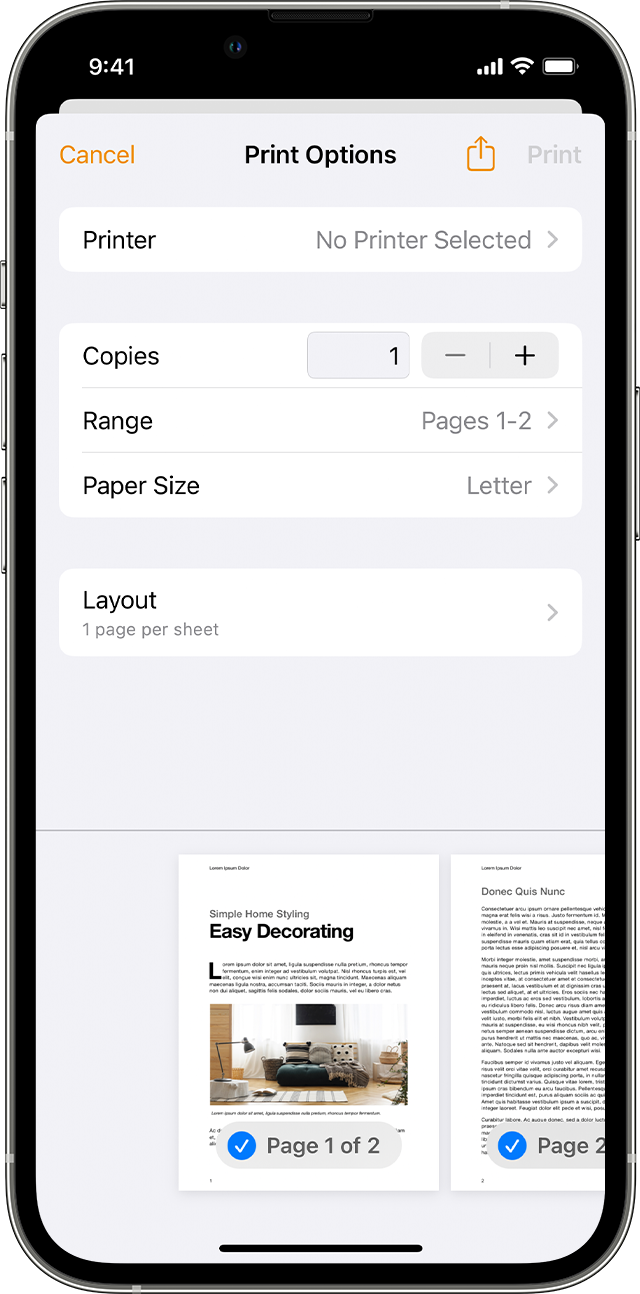
Select options from Print Options 

Print with AirPrint

  1. Open the app that you want to print from.
  2. To find the print option, tap the app’s Share button  or  or the Actions button.
  3. Scroll down and tap the Print button  or Print. If you can’t find the print option, check the app’s User Guide or Help section. Not all apps support AirPrint.

  4. Tap No Printer Selected and choose an AirPrint-enabled printer.
  5. Choose the number of copies or other options, like which pages you want to print.
  6. Tap Print in the upper-right corner.

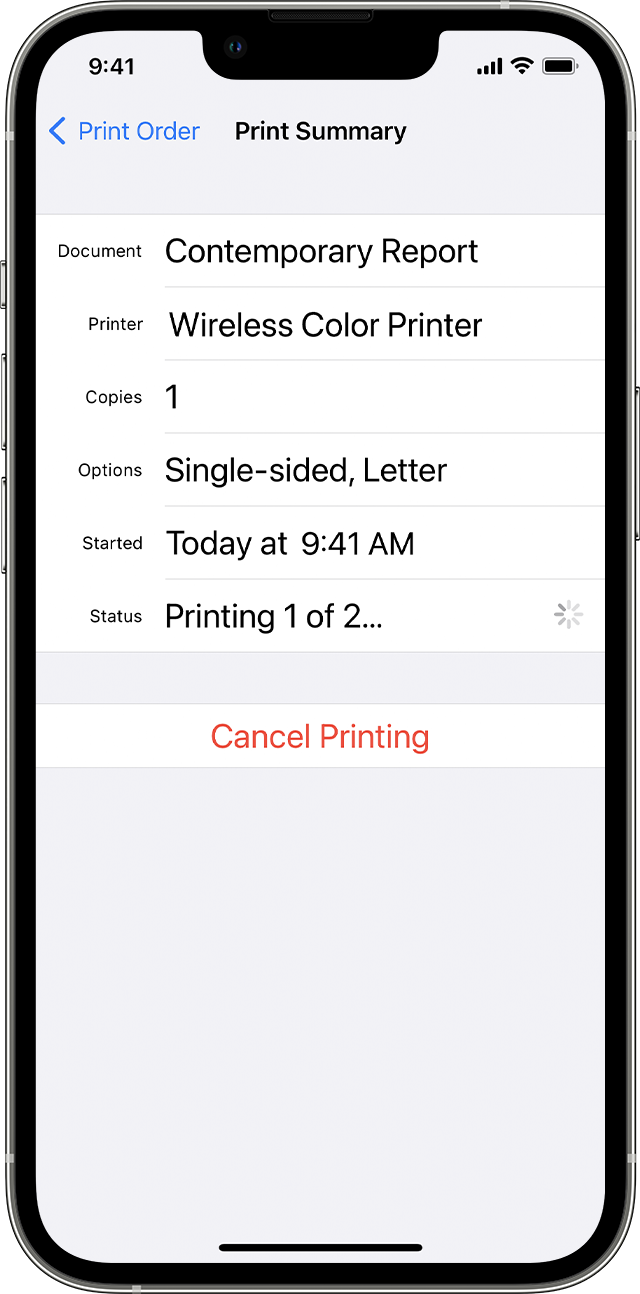
View or cancel your print job

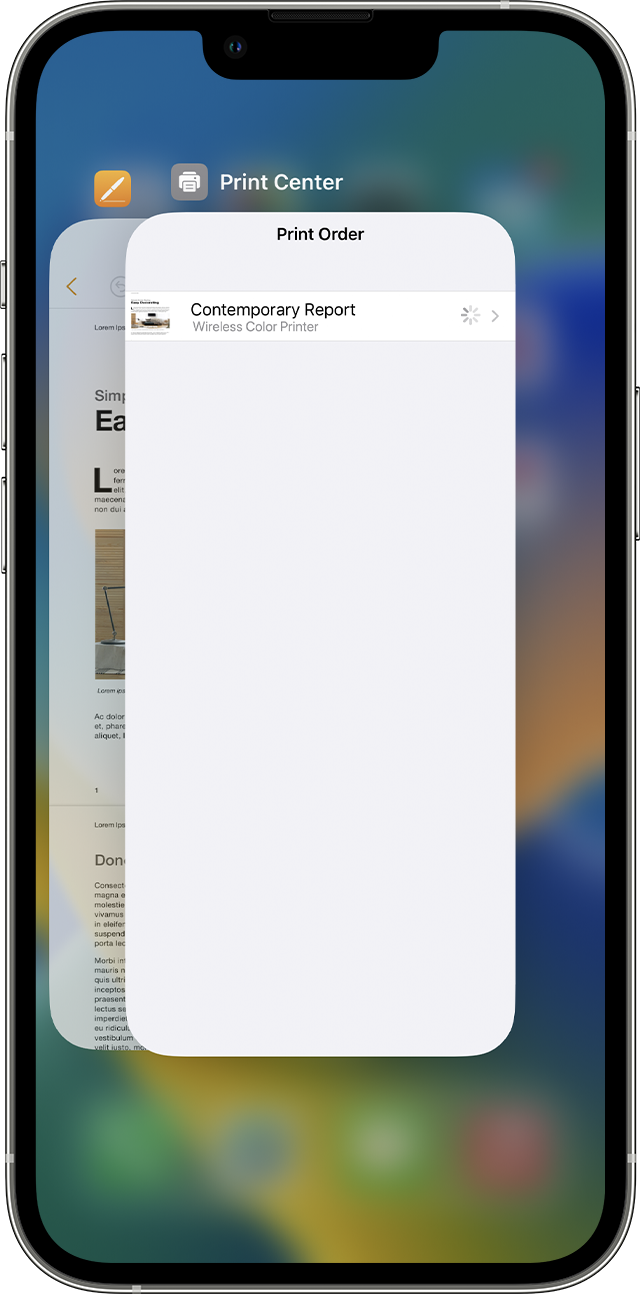
While printing, you can view your print jobs or cancel them through the App Switcher.

View a print job

View print jobs in Print Center 

To view a print job, open the App Switcher, then tap Print Center.

Cancel a print job

Cancel a print job from Print Summary 

To cancel a print job, open the App Switcher, tap Print Center, then tap Cancel Printing.

AirPrint works with Wi-Fi or wired network connections. AirPrint devices connected to the USB port of an Apple AirPort Base Station or AirPort Time Capsule, or to your computer using Bluetooth connection, can’t use AirPrint.

Information about products not manufactured by Apple, or independent websites not controlled or tested by Apple, is provided without recommendation or endorsement. Apple assumes no responsibility with regard to the selection, performance, or use of third-party websites or products. Apple makes no representations regarding third-party website accuracy or reliability. Contact the vendor for additional information.

Published Date: 

DM Connect

(document workflow management)

Kyocera Mobile Print

(smart device printing for finishing options)

Kyocera Fleet Services

(fleet monitoring and maintenance)

Click link below to download PDF

KFS Whitepaper

WTS-P

(inbound package tracking)

Click link below to download software file

WTSP365.apk